
Quick answer
OnBase Workflow timers stop firing for one of five reasons: the scheduling service that executes timer work isn’t running; timers left bound to the deprecated Workflow Timer Service after an upgrade; a timer assigned to a server that no longer exists; server clock or time-zone drift; or a timer that fires but whose work is blocked by database or item locks. Start with the service — then verify a timer actually ran, not just that something is running.
Nothing announces a dead timer. Documents ad-hoc route fine, users work their queues, the platform reports healthy — and the escalations that should fire at 48 hours, the batch transitions that should run overnight, the SLA clocks that should advance, simply don’t. Most teams discover it the way no one wants to: an auditor, a customer, or a Monday morning queue with three days of unmoved work.
Here are the five causes in order of likelihood and the fix for each — complete, on this page. (The full catalog of OnBase health checks and tests is published here, ungated.)
01 — The Causes
Why do OnBase Workflow timers stop firing? Five causes, ranked by likelihood
Match the symptom, then jump to the fix.
| # | Cause | The signature | The fix, in short |
|---|---|---|---|
| 1 | The scheduling service isn’t running | No timer has executed since a specific date — often a patch window or reboot. Ad-hoc Workflow still works. | Start the service; find out why it stopped |
| 2 | Timers still on the deprecated Workflow Timer Service after an upgrade | Timers worked before the upgrade; nothing errors afterward — the legacy service is deprecated and the timers never moved to the Unity Scheduler | Convert timers to the Unity Scheduler |
| 3 | Timer assigned to a server that no longer exists | Some timers fire, others never do — the dead ones are bound to a decommissioned or renamed machine | Reassign the timer’s execution server |
| 4 | Clock or time-zone drift | Timers fire at the wrong hour, double-fire around DST, or “miss” narrow execution windows | Sync clocks; re-check execution windows |
| 5 | Timer fires, work can’t complete | Timer shows activity but items don’t move — deadlocks, batch or process locks, or timeouts under load | Clear the locks; fix the database |
Cause 2 is the one that catches good teams. Hyland lists the legacy Workflow Timer Service as a deprecated interface, with the Unity Scheduler as its successor for executing timer work. An upgrade — and with OnBase 26.1 in the field, this is upgrade season — can leave timers configured against the old path with nothing visibly wrong. The upgrade succeeded. The timers just stopped being anyone’s job.
Cause 5 is the impostor. The timer infrastructure is healthy; the work it triggers can’t finish. Database deadlocks, a batch or process lock held by a crashed client session, or a queue deep enough that timer work times out all produce the same business symptom — “the timer didn’t run” — while every timer log says it did. That’s why the fix sequence below checks execution evidence before touching services.
02 — The Fix
How do you fix an OnBase timer that is not firing? The repair sequence
In order. Restarting services before reading the evidence wastes the afternoon.
-
Establish what actually ran, and when
Pick one timer that should have fired and look for its output: workflow log entries for the timer-driven transition, items that changed queues after the scheduled time, notifications that went out. Note the last time it worked — that date usually points straight at a patch window, an upgrade, or a server change.
-
Check the scheduling service on the right machine
Confirm the service that executes timer work — the Unity Scheduler, or the legacy Workflow Timer Service in older configurations — is running on the server the timers are assigned to. A healthy service on the wrong machine is indistinguishable from a dead one. Check the Windows event log on that server for service errors at the time the timers should have fired.
-
If this started after an upgrade: check the timer bindings
In OnBase Studio, review how the affected timers are configured to execute. Timers still bound to the deprecated Workflow Timer Service should be converted to the Unity Scheduler — do it deliberately, timer by timer, and re-verify each one’s schedule and execution server as you go. This is also the moment to confirm the legacy service wasn’t uninstalled by the upgrade while timers still point at it.
-
Fix server assignments and clocks
For timers that never fire on one machine while others run fine, reassign the execution server to a live one. Then verify system clocks and time zones agree across the application servers and the database server — a drifted clock or a DST transition explains timers that fire at the wrong hour or skip a narrow window.
-
If timers fire but nothing moves: clear the blockage
Check for held batch, process, and document locks and release the stale ones; check the database for deadlocks and blocked transactions at the timer’s run time. Then re-run the timer and confirm items actually transition. If the work times out under queue depth, schedule the heavy timers off-peak.
03 — Prevention
How do you keep OnBase timers from silently stopping again?
A dead timer is invisible by design. Watching for it has to be deliberate.
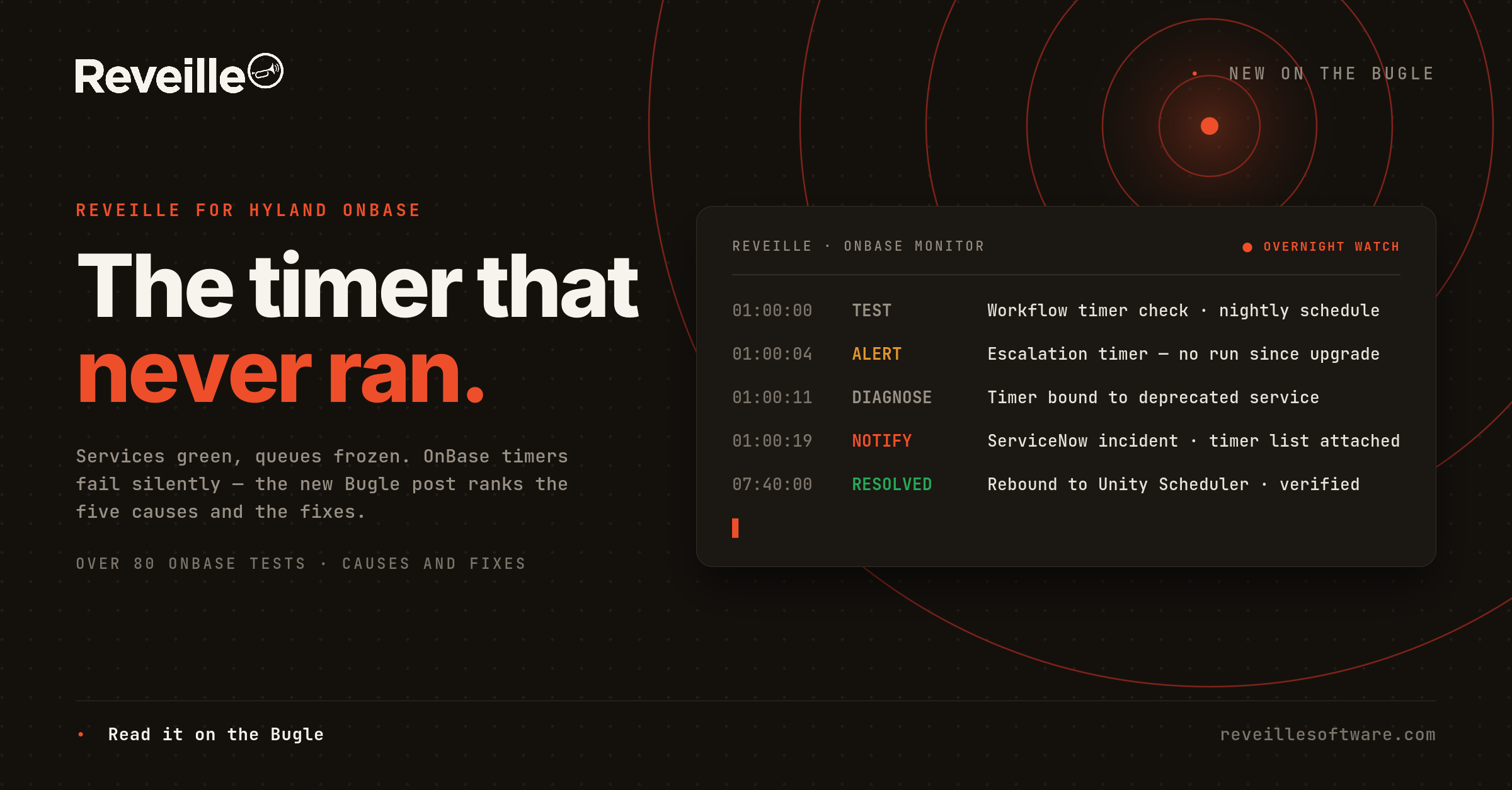
Every cause above shares the same property: nothing turns red. Services show running, users keep working, and the only true signal — this timer has not executed — is one that platform dashboards don’t watch. That signal has to be checked continuously, per timer, against what “ran” should look like. Reveille for Hyland OnBase ships over 80 pre-configured OnBase tests, and this exact failure chain is covered out of the box: Workflow Timer Errors and Workflow Timer Never Ran checks, OnBase Services checks, OnBase Windows Event log checks, OnBase Database Deadlocks/sec, and Process Locks, Batch Locks, and Disk Group Locks counts. Run those through an upgrade window and a timer that comes out of 26.1 silently unbound raises an alert that night — not in next month’s audit.
Reveille for Hyland OnBase
Agentless observability for OnBase — over 80 pre-configured tests and over 85 dashboard metrics, including the Workflow Timer Never Ran check this post is about. The full catalog is linked above, ungated.
Supporting client estates as an MSP, SI, or ISV? That’s what Reveille SENTRY is built for — multi-tenant observability for the estates you manage.
Frequently asked questions